
Starting a space
Every other journey starts from a space that already exists. This one makes it. Three screens, one sitting, and at the end you have somewhere to invite people to.
When this is for you
Section titled “When this is for you”This journey is short and not one you take often. Three situations tell you whether it is the one you need right now.
- Your company is starting with Knowspread. You have a sign-in but no organisation, and colleagues are asking where to go. You go through three screens and end up in a space with its own address, as its only person for now. Only then does inviting people make sense.
- You want to try assigning before buying anything. A new space is on the FREE plan and already holds Knowspread’s own onboarding courses, with licences. You can use them to see how content is assigned without buying anything — just bear in mind that on FREE, reports are out of reach.
- You only want to rename an existing space. This is the wrong place: the form creates a new space, it does not change an old one. The name is edited in general settings. And because the subdomain cannot be changed from this form afterwards, choose it right the first time, as if it were permanent.
If one of these is you, carry on to step 1. The form lives in the profile menu, not in organisation settings, so look for it there.
1. Open the form
Section titled “1. Open the form”Organisation settings cannot make a space — the form lives in the profile menu, under Vytvořit organizaci.
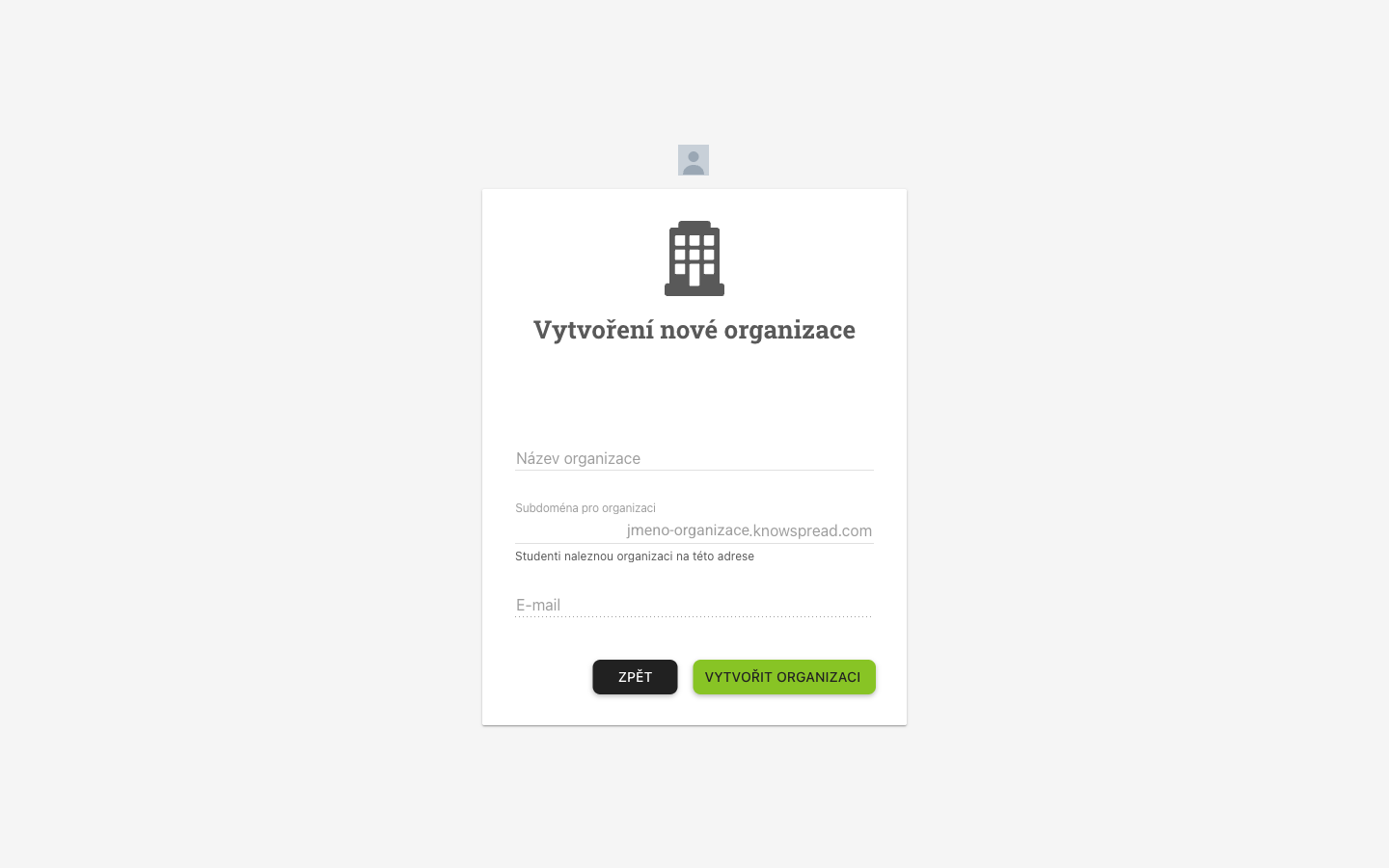
- (1) Název organizace is what people will see in the top bar.
- (2) Subdoména is the harder choice. It becomes the address, so it is what people type to reach you, and the note under the field says as much.
- (3) E-mail is the address of the account you are signed in with. Knowspread fills it in for you and it cannot be changed here, which is why the field has a dotted underline. It is still empty in this screenshot; step 2 shows it filled.
- (4) Vytvořit organizaci submits the form only once all three fields are validly filled. Otherwise it shows under the fields what is missing.
2. Name it and choose the address
Section titled “2. Name it and choose the address”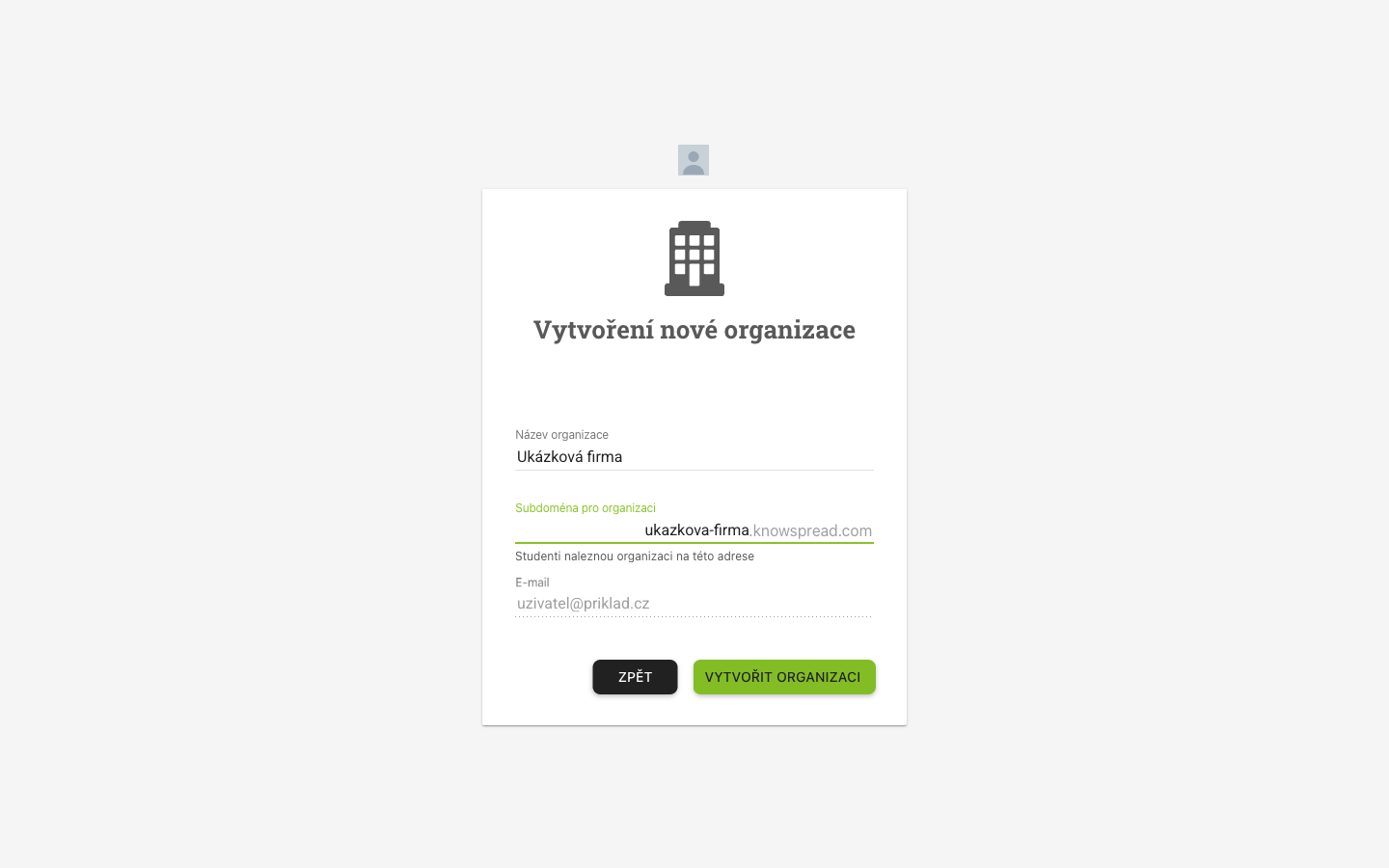
- (1) The subdomain builds the address in place, so you see the result before committing to it.
- (2) Submitting checks two things separately before it creates anything: whether the e-mail is free, and whether the subdomain is taken.
The subdomain cannot be changed from the create form afterwards. General settings shows it as a field, so it is worth choosing as if it were permanent.
3. Land in the new space
Section titled “3. Land in the new space”Creating the space signs you into it, on its own address.
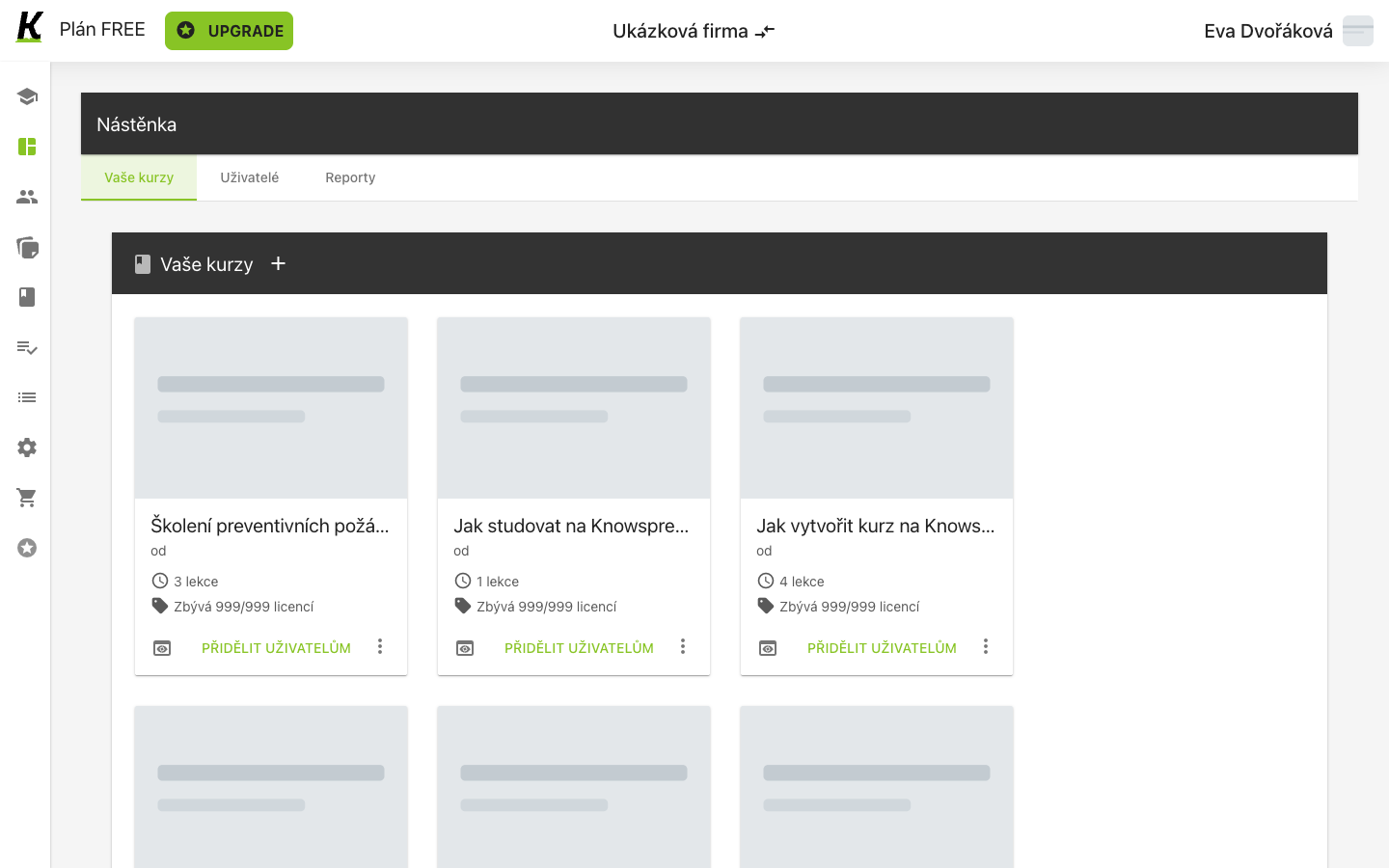
- (1) A new space is on the FREE plan, with an upgrade prompt in the bar. That is what puts reports out of reach — see the admin dashboard.
- (2) It is not empty. Knowspread’s own onboarding courses are already there, each with its licences.
- (3) Přidělit uživatelům would assign one, except there is nobody to assign it to yet.
Where this leaves you
Section titled “Where this leaves you”A space with content and one person in it — you. The starter courses mean you can try assigning before buying anything.
Next: inviting people, and buying content worth assigning.